.png&w=3840&q=75)
Online Chess Safety for Kids: A Practical Parent Checklist
Check who can contact your child, what their profile shows and how to get help. A practical setup guide for online games and live chess lessons.
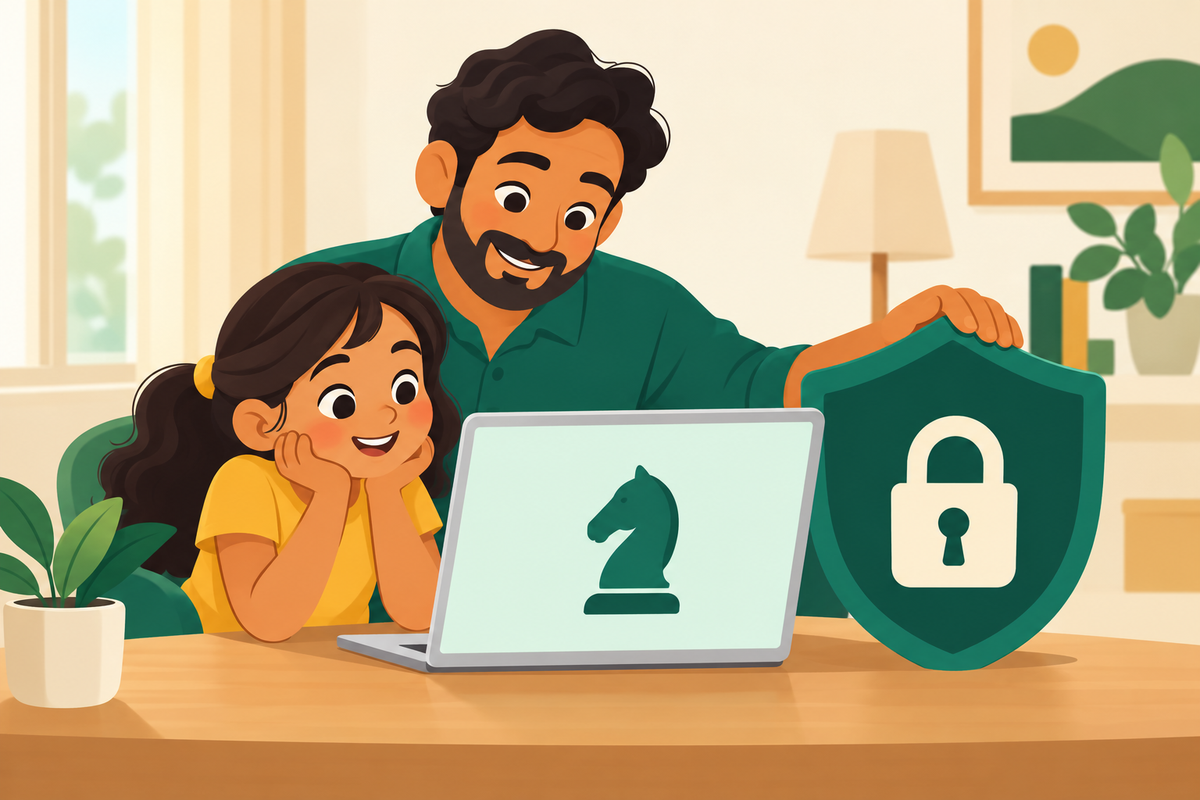
Before a child starts online chess, check who can contact them, what other people can see on their profile, and how they can get help. Turn on suitable child or privacy settings, agree which activities they can use, and try the setup together. A chess-themed website still needs the same care as any other online service.
Online chess safety for kids is partly about account controls and partly about a clear routine at home. No setting guarantees a completely risk-free experience, and a live coaching class may use different tools from a public playing site. Check each service your child will actually use.
Start with the account and public profile
Use the platform’s parent or child-account process where offered, and read its current age and consent requirements. Choose a username that does not reveal a child’s full name, school, phone number or exact location. Check the public profile as well as the registration form: a detail requested privately does not necessarily need to appear publicly.
Keep account recovery under adult control and use a unique password. Avoid putting a child’s school badge or other identifying detail in a profile picture. If a coach asks for an account name to organise a class, confirm the correct recipient and share only what the class needs.
Check communication controls, not just game settings
Look separately for direct messages, in-game chat, friend requests, public comments and classroom communication. “Chat is off” may refer to only one of these. Test the settings on the actual device your child uses, and review them again when adding an app or joining a new class.
For example, Lichess’s current Kid Mode documentation says accounts cannot message ordinary outside accounts and cannot access forums, blogs, streams or videos. There is a classroom exception: they can exchange messages with other Kid Mode accounts in the same Lichess class and with the teacher who created it. A password is needed to switch Kid Mode off, so Lichess recommends that the adult retain control of it.
For Chess.com, the official child-safety guide says Support can enable Safe Mode, which disables messages, chat and comments. It also describes separate blocking and game-chat controls. These are examples of current platform features, not a claim that every chess app has the same protections.
Ask a coaching provider these practical questions
Which meeting tool and playing platform will the child use?
Who can join the class, and how are unexpected participants handled?
Will teachers contact the child directly, or will scheduling and other communication go through the parent?
Are lessons recorded? If so, who can access the recording, and how long is it retained?
Who should the parent contact about an unfamiliar message, participant or behaviour?
Ask before enrolling and keep the answers somewhere easy to find. If a class uses a public chess service for practice, clarify which settings the family must configure. Do not assume an academy manages a third-party account simply because it recommends the platform.
Agree a simple routine with your child
Pick the planned activity before opening the device: a lesson, a few assigned exercises or a game with an approved contact. Decide when the session will end. Keep the first sessions somewhere you can help with navigation without selecting moves for the child.
Use a clear instruction they can remember: “If someone asks for personal details, sends an unfamiliar link or makes you uncomfortable, stop and show me.” Make it easy to ask for help without worrying that reporting a problem automatically means losing chess altogether.
If an interaction is concerning, pause it, use the platform’s reporting or blocking tools where appropriate, and contact the class provider if its lesson is involved. Avoid continuing the conversation to investigate it yourself. For an immediate threat to a child’s safety, seek help from the appropriate local emergency service.
Make the setup part of choosing the class
Compare teaching quality and practical arrangements together. Our guide to chess apps and live classes helps you think about the kind of support your child needs, and the first-demo checklist covers getting ready for the lesson.
Project64 offers live online group and one-to-one chess classes for children aged 5–16. Book a free demo and use the conversation to ask about the joining process, practice platform and parent communication. Confirm the arrangements that matter to your family before deciding.