Internet Dropped During an Online Chess Class? Start Here
Tell the coach what stopped working, use the agreed way to rejoin and find out what your child needs to pick up afterwards. A connection problem need not become a stressful lesson.
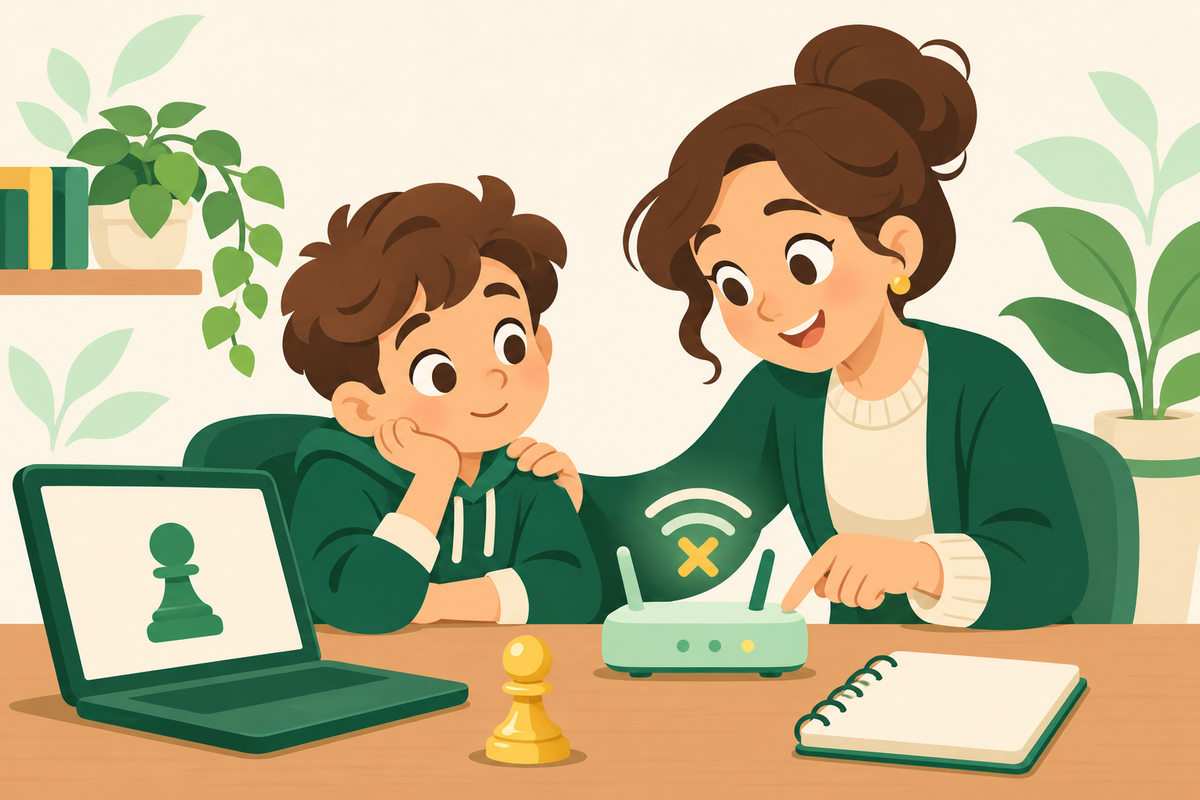
If the internet drops during an online chess class, help your child pause, tell the coach what happened through the agreed contact channel and follow the joining instructions to return. Once they are back, ask which position or question the class is working on. They do not need to guess what they missed.
It helps to separate three problems: the call has disconnected, the sound has stopped, or the chessboard is no longer updating. Describing the symptom is more useful than saying that the whole lesson is broken.
Agree on the recovery plan before the lesson
Keep the academy’s joining instructions and contact details somewhere you can find without searching through several conversations. Ask who to contact if the lesson disappears, whether to use the original link to return and what to do if the child is waiting to be admitted.
Project64’s current setup guidance recommends a laptop or desktop, a stable internet connection and a quiet place, with joining instructions shared before the demo. Use that preparation to ask about your family’s actual setup. Our device guide for online chess lessons covers the screen and input choices.
Check what your child can still see and hear
Ask one simple question at a time. Can they hear the coach? Does the board respond? Can the coach hear them? Let the child describe the problem while an adult handles the connection checks. Avoid repeatedly asking them to make chess moves to prove that it is working.
If a message can still get through, be specific: “We can hear you, but the board has stopped updating.” If the call has ended, use the academy’s agreed contact method. Share only the lesson details needed to identify the session; do not send passwords.
Use the support steps for the actual lesson platform
Check the platform’s own help instructions before changing settings. For example, Google Meet’s connection guide describes closing unnecessary apps or tabs, pausing large transfers and leaving and rejoining a call. It also explains that turning off video can reduce the connection’s workload. These are Meet-specific instructions, not a statement that Project64 uses Meet for every lesson.
Ask the coach whether continuing temporarily without camera video would work for the activity. Audio alone may not be enough if your child cannot see or use the board. Avoid turning the remaining lesson into a long sequence of experiments; tell the team if the connection will not recover.
Rejoin at a clear point
Once the connection returns, help your child ask: “Which side is moving, and what are we trying to find?” The coach can then decide whether to repeat a short explanation, reset the exercise or bring the child into the next activity.
This advice concerns a coached lesson. A live competitive game has its own disconnection and fair-play rules; contact the organiser about those instead of assuming the lesson can simply restart.
Finish with one practical follow-up
After class, note the approximate interruption time and what failed. Ask which task matters before the next lesson and whether any further arrangement is needed. Do not assume that a recording, replacement session or refund is included: confirm the academy’s terms. Our catch-up guide can help keep the learning task manageable.
If you are considering classes, book a free Project64 demo and use the joining preparation to check both the learning fit and the practical setup.